
Batch document conversion for Windows
Docs2Many
Convert whole folders of Word, Excel, PowerPoint, PDF and image files to the format you need — locally, privately, in a single run. Free on the Microsoft Store for Windows 10 and 11.
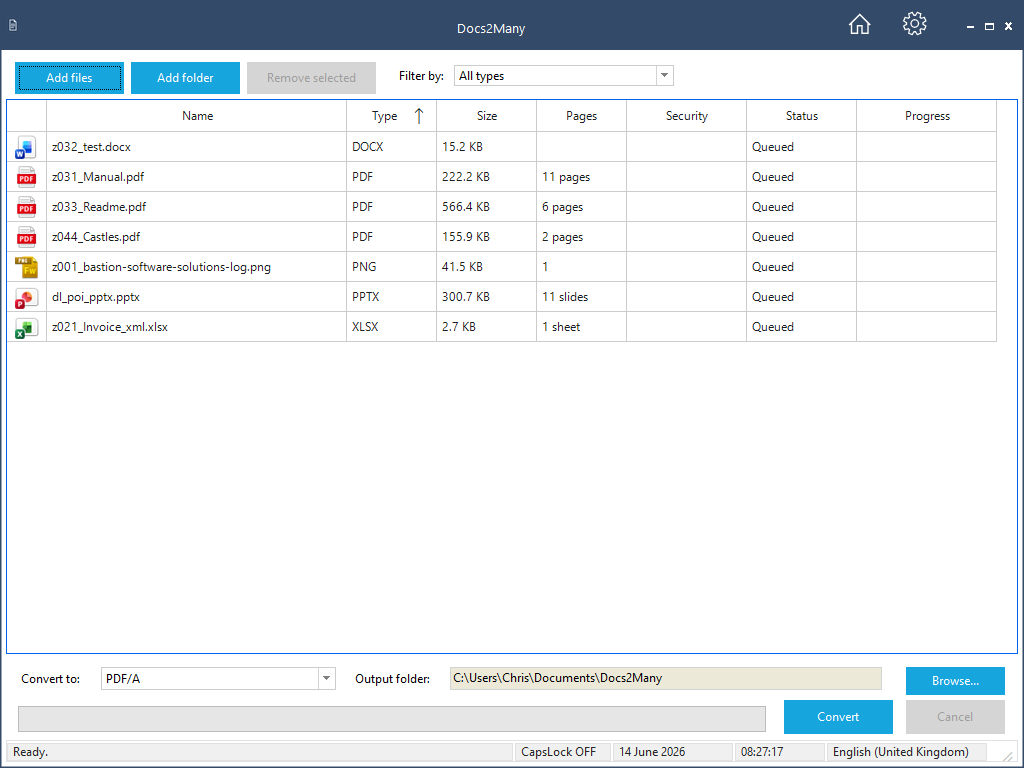
How it works
Four steps from a folder of mixed documents to a tidy set of converted files.
STEP 1
Add files or folders
Drop in individual documents or point Docs2Many at a folder. Every subfolder is scanned and every supported file is added to the queue.
STEP 2
Filter and choose
Filter the queue by source type, then pick one destination format. Docs2Many only ever offers destinations your files can actually become.
STEP 3
Set an output folder
Choose where converted files are written. Password-protected, signed and rights-managed files are detected before the run begins.
STEP 4
Convert and review
Convert the queue and, when it finishes, a detailed end-of-run report lists every file’s result and flags anything skipped or failed.
Why Docs2Many
A clean, focused batch converter — no ads, no accounts, no cloud. Point it at your files and let it run.
Smart format filter
The destination list is driven by what is in your queue, so you can never pick an output most of your files can’t reach. A single type offers that family’s own formats; a mixed queue offers the universal targets.
Genuine batch workflow
Add individual files or whole folders, scanned recursively, into a sortable, multi-select queue showing type, size, pages and per-file progress, with several files converting in parallel.
Local-first & private
Every conversion runs on your PC. Document content never leaves the machine.
Features
Everything in the first release (v1.0).
- Add individual files or whole folders, scanned recursively through every subfolder
- A sortable, multi-select queue showing type, size, pages/sheets/slides, security and per-file progress
- A Filter by source-type control that drives the destination list, so an incompatible output can never be chosen
- One destination format and one output folder for the whole batch
- Universal targets — PDF, PDF/A, PNG and JPEG — from every file family, plus each family’s own formats
- Image output as one image per page, sheet or slide, with configurable DPI and JPEG quality
- Password-aware pre-run probe: prompts per protected file, with “use for the rest” and skip options
- Rights-managed files detected and skipped with a logged reason; signed files convert (signature not preserved)
- Per-file process isolation with a 120-second timeout and a configurable memory cap (default 3 GB), so one bad file can’t take the app down
- Filename-collision policy (suffix / overwrite / skip / ask) and an oversized-input guard
- A detailed, self-contained end-of-run HTML report you can save and send to support
Supported formats
Docs2Many reads 31 file types across five document families and writes to 20 destinations. All conversion runs entirely on your machine.
Reads: Word (doc, docx, docm, dotx, dotm, rtf, html, htm, md, markdown, txt), Excel (xls, xlsx, xlsm, xlsb, xltx, xltm, csv, tsv), PowerPoint (pptx, pptm, potx, potm), PDF, and images (png, jpg, jpeg, bmp, gif, tif, tiff).
Writes: PDF, PDF/A, PNG and JPEG from every family, plus each family’s own formats — Word also to DOCX, DOC, RTF, WordML, HTML, Markdown, TXT and EPUB; Excel to XLSX, XLS, CSV, TSV and HTML; PowerPoint to PPTX, PPTM, POTX and POTM. Conversion stays within a family — Word can’t become Excel — and PDF sources convert only to PDF/A or page images.
OpenDocument formats (ODT/ODS) and the legacy binary templates .dot and .xlt are not supported.
Want the full picture? See exactly what converts to what →
System requirements
- Operating system: Windows 10 version 1809 or later, or Windows 11 (64-bit)
- Processor: dual-core 2.0 GHz minimum; quad-core or more recommended for large batches
- Memory: 8 GB RAM minimum, 16 GB recommended for large batch jobs
- Disk space: around 300 MB for the application, plus storage for converted files
- Distribution: Microsoft Store n
- Current version: 1.1.0.0
Frequently asked questions
Can it convert a Word file to Excel, or across families?
No. Conversion stays within a document family. Every family can also produce PDF, PDF/A, PNG and JPEG, but a Word file never becomes a spreadsheet, and so on.
What happens to password-protected or signed files?
Protected files are detected before the run and you’re prompted for the password per file, with a “use for the rest” option. Rights-managed files a password can’t open are skipped with a logged reason. Signed files convert, but the signature is not preserved.
Does it change my original files?
No. Source files are read-only. Converted files are written to a separate output folder of your choosing.
Can it turn a PDF back into an editable Word document?
No. PDF sources convert to PDF/A or page images only; there is no PDF-to-editable-Office conversion in v1.
How much does it cost?
Docs2Many is completely free on the Microsoft Store from version 1.1.0.0 — no purchase, no trial period, no subscription and no account. Get it on the Microsoft Store.
Can I save my output to the cloud?
Yes — indirectly. Docs2Many writes converted files to any folder you choose and has no cloud account of its own. If you want a copy in the cloud, set the output folder to one your cloud app already syncs — your OneDrive, Google Drive or Dropbox folder, for example — and it uploads automatically. Nothing is ever sent to us.
Get Docs2Many on the Microsoft Store
Get notified of updates
Occasional release news by email — we send a confirmation link first, and you can unsubscribe at any time.