
Batch PDF compression for Windows
CompPDF
Compress whole folders of PDFs in one run — passwords handled, signatures managed, and nothing ever uploaded. Available now on the Microsoft Store for Windows 10 and 11.
How it works
Four steps from a folder of bulky PDFs to a tidy set of smaller copies.
STEP 1
Add files or folders
Drop in individual PDFs or point CompPDF at a folder. Every subfolder is scanned and every PDF it finds is added to the queue.
STEP 2
Choose an output folder
Compressed copies are written to the folder you pick — your originals stay untouched. Compression options are set once in Settings.
STEP 3
Answer everything up front
Before compression starts, every document is checked and any questions — passwords, signatures, filename clashes — are asked then, so the batch never stops halfway.
STEP 4
Compress and review
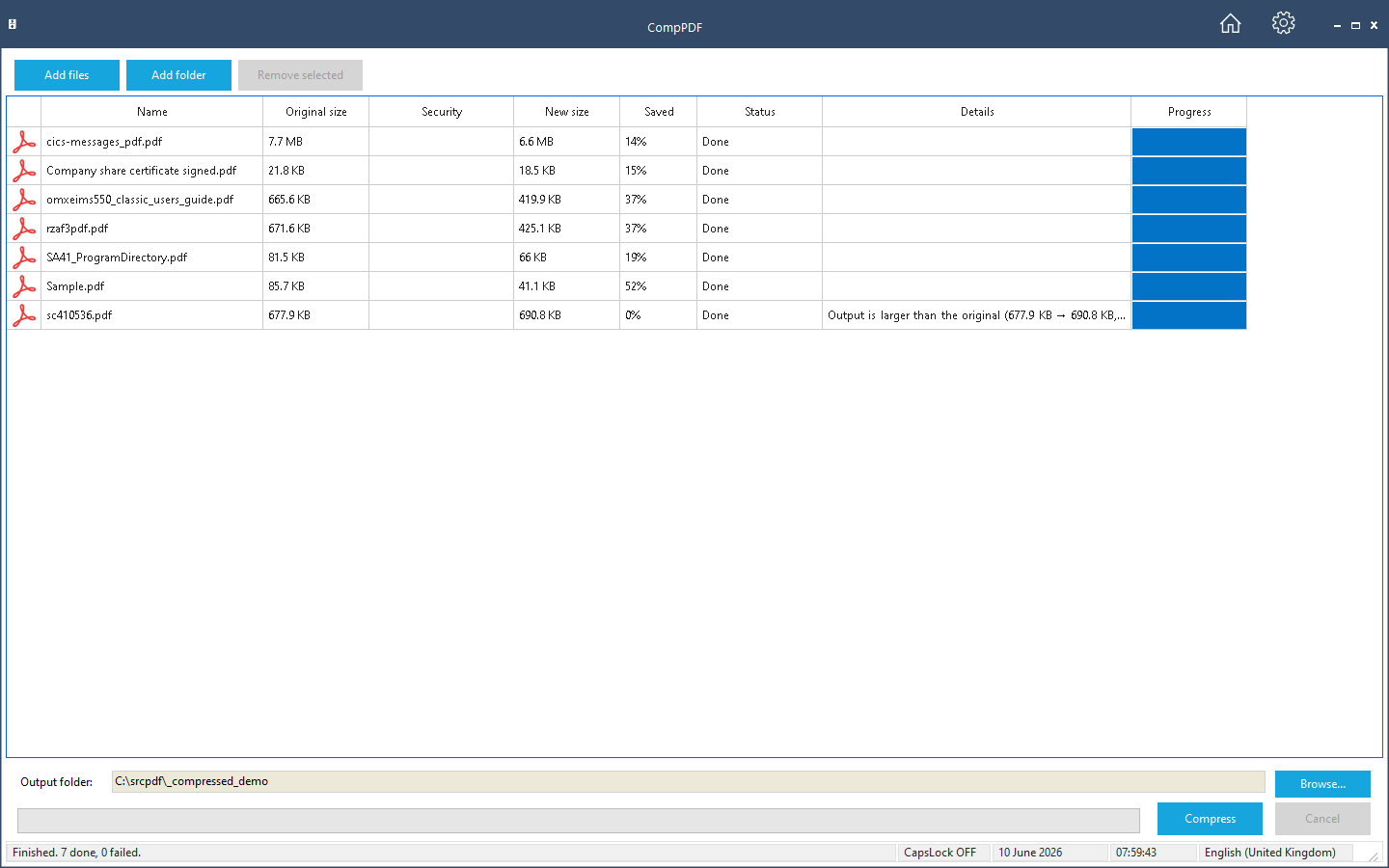
The whole queue compresses in one run, each row filling in its new size and saving, and an end-of-run report lists the result of every file.
Why CompPDF
A clean, focused batch compressor — no ads, no accounts, no cloud. Your documents stay on your PC.
Nothing is uploaded
Unlike web-based PDF compressors, CompPDF does all of its work on your own PC. Contracts, statements, and records never leave your machine — there is nothing to upload and no service to trust.
Passwords & signatures, handled properly
Password-protected PDFs are prompted up front, and the same password is re-applied to the compressed copy. Digitally signed PDFs are flagged honestly — and can be re-signed with your own certificate.
Genuine batch workflow
Add individual files or whole folders — every subfolder is scanned and every PDF queued in a sortable, multi-select list, with per-file progress and a clear report at the end.
Features
Everything in the first release (v1.0).
- Add individual files or whole folders, scanned recursively through every subfolder
- A sortable, multi-select compression queue showing each file’s size, security, and per-file progress
- One output folder for the whole batch, with safe in-place overwrite if you choose it
- Compression options: image compression with a quality setting, font optimisation, page-content optimisation, and metadata removal
- Password-protected PDFs prompted up front — the same password is re-applied to the compressed copy
- Digitally signed PDFs flagged before the run, with optional re-signing using your own certificate (.pfx)
- A choice of what happens when an output file already exists: ask, add a number, overwrite, or skip
- An end-of-run report listing every file’s original size, new size, and saving
Re-saving a digitally signed PDF always invalidates its signature — that is how PDF signatures work in every tool, not a quirk of CompPDF. CompPDF tells you, and can re-sign the compressed copy with your certificate. Planned for later versions: compression presets and per-file option overrides.
Where the savings come from
CompPDF rebuilds each PDF with four optimisations, each of which you can turn on or off: images are recompressed at your chosen quality (High, Balanced, or Maximum), embedded fonts are stripped of unused data, page contents are tidied and compressed, and document metadata can be removed entirely.
How much a file shrinks depends on what is inside it. Scanned documents and image-heavy PDFs shrink the most — often by half or better. PDFs that are mostly text with already-optimised fonts have less to remove and save less. The end-of-run report shows the exact saving for every file.
System requirements
- Operating system: Windows 10 version 1809 or later, or Windows 11 (64-bit)
- Processor: dual-core 2.0 GHz minimum
- Memory: 4 GB RAM minimum, 8 GB recommended for large batch jobs
- Disk space: a few hundred megabytes for the application, plus storage for the compressed copies
- Distribution: Microsoft Store
Frequently asked questions
Are my documents uploaded anywhere?
No. CompPDF does all of its work on your PC — unlike web-based PDF compressors, your documents never leave your machine.
How much smaller will my PDFs get?
It depends on the file. Scanned and image-heavy PDFs often halve in size or better; text-heavy PDFs with already-optimised fonts save less. The report shows the exact saving for every file, so you always know what you got.
What happens to password-protected PDFs?
You are asked for the password up front, once per file — or once for all of them, if they share it. The compressed copy has the same password re-applied, so it stays exactly as protected as the original. Passwords are used only on your PC and are never stored or transmitted.
What happens to digitally signed PDFs?
Re-saving a signed PDF always invalidates the signature — in every tool, not just this one. CompPDF flags signed files before the run and, if you supply your own certificate, re-signs the compressed copy for you. Where the original signature matters, keep the original file.
Does it change my original files?
No — compressed copies are written to the output folder you choose. Your originals are only replaced if you deliberately point the output at the same folder and choose to overwrite.
How much does it cost?
CompPDF is completely free on the Microsoft Store from version 1.0.1.0 — no purchase, no trial period, no subscription and no account. Get it on the Microsoft Store.
Can I save my output to the cloud?
Yes — indirectly. CompPDF writes its compressed copies to any folder you choose and has no cloud account of its own. If you want a copy in the cloud, set the output folder to one your cloud app already syncs — your OneDrive, Google Drive or Dropbox folder, for example — and it uploads automatically. Nothing is ever sent to us.
Get CompPDF on the Microsoft Store
Get notified of updates
Occasional release news by email — we send a confirmation link first, and you can unsubscribe at any time.