
Available now · Microsoft Store
Backup2Many
Always-on backup — even the files that are open. Backup2Many keeps a second, always-up-to-date copy of your files, copying changes as they happen and verifying every copy. Available now on the Microsoft Store for Windows 10 and 11.
How it works
Set up a job once, and your backup stays moments behind your working files.
STEP 1
Create a backup job
Pick a source folder and a destination — another internal drive, an external or USB disk, or a network share / NAS. Add as many jobs as you like.
STEP 2
It watches and copies
In real-time mode, each change is mirrored moments after it happens. Open and locked files are captured safely with a Windows Volume Shadow Copy snapshot.
STEP 3
Every copy is verified
Each file is checked with a SHA-256 hash after it is written, so you know the backup is a byte-for-byte match of the original.
STEP 4
Stay in control
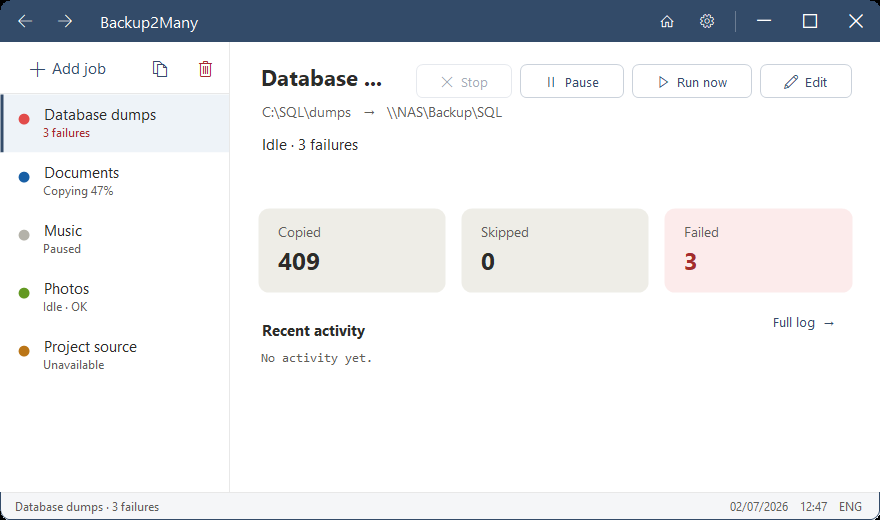
Watch live status and progress, review any failures with one-click retry, and read a full activity log. It keeps running in the background after you log off.
Why Backup2Many
Real-time, verified and resilient — no accounts, no cloud, nothing uploaded anywhere.
Backs up open files
Documents open in Word or Excel, databases in use, mailbox files locked by your email client — Backup2Many reads them through a VSS snapshot instead of failing with a “file in use” error.
Verified, never silent
Every copy is SHA-256 verified, and anything that could not be copied is listed by name with the exact reason — nothing is ever hidden or quietly skipped, and you can re-try in one click.
Resilient & always on
It checks a network share is reachable before touching it, and if a drive drops out it waits and retries until it returns. It runs as a Windows service, so it keeps working after you log off.
Features
Everything in the current release.
- Watches your folders and copies changes as they happen — real-time or manual mode per job, with Run now on demand
- Smart write-settling waits for a file to finish saving before copying, so it never grabs a half-written file
- Backs up open and locked files — documents, databases and mail files in use — via Windows Volume Shadow Copy (VSS) snapshots
- Per-job shadow-copy policy: Auto (snapshot only when a file is locked), Require (always) or Off
- Every file verified with a SHA-256 hash after copying, with optional content-based startup verification and Verify now on demand
- Back up to another internal drive, an external / USB disk, or a network share / NAS (UNC path)
- Removable drives recognised by their own volume identity, not by a drive letter that may change between plug-ins
- Network credentials stored in Windows Credential Manager (DPAPI), never kept by the app itself
- Network destinations checked for reachability first, so it never freezes on an offline NAS
- Automatic retry on disconnect: backs off and retries on a growing delay until the device returns, then parks the job as Unavailable
- As many independent jobs as you like — a slow or offline destination on one never holds up the others
- Clone any job to pre-fill a new one with its settings — handy for backing up a similar folder, or the same folder to a second destination
- Pause and resume any job — temporarily stop it, even mid-backup, and pick it back up without losing its setup
- Per-job deletion handling: Keep (additive), Mirror (match the source) or Archive (move to a dated grace folder)
- Clear failure reporting — every problem listed by name with the exact reason, remembered across restarts, with one-click retry of one file or all, plus export of the full list
- Live per-job status and progress, a recent-activity panel, and a full, persisted activity log
- A notification-area (tray) icon showing idle, backing up, waiting or paused
- Runs as a Windows service and keeps working after you log off; close to the tray and restore any time
System requirements
- Operating system: Windows 10 version 1903 (build 18362) or later, or Windows 11 (64-bit)
- Destination: a second internal drive, external / USB disk, or network share / NAS with enough free space for the files you back up
- Distribution: Microsoft Store
Frequently asked questions
Is this a full disk-image or system backup?
No. Backup2Many mirrors files and folders. It is not a full disk-image, system-image, or bare-metal recovery tool.
Can it back up files that are open or locked?
Yes. It uses a Windows Volume Shadow Copy (VSS) snapshot to read files that are in use — open documents, in-use databases, locked mailbox files — instead of skipping them.
Does it upload anything to the cloud?
No. It runs entirely on your PC and copies only to the destinations you choose. Nothing is uploaded anywhere, and no account or sign-in is required.
What happens when I delete a file from the source?
You choose per job: Keep leaves the backup copy in place (the safe default), Mirror deletes it to match the source exactly, and Archive moves it to a dated grace folder before removing it.
How much does it cost?
Backup2Many is a one-time purchase of £9.99 on the Microsoft Store, with a free 15-day trial — no subscription and no account.
Can I back up to the cloud?
Indirectly. Backup2Many copies to any destination you choose and has no cloud account of its own. You can point a job at a folder your OneDrive, Google Drive or Dropbox app syncs, but for a real-time backup a second drive or NAS is the better choice — a sync client watching the same folder Backup2Many is writing to means two tools churning over every change, which can cause conflicts and heavy uploads. Nothing is ever sent to us.
I see a “credential conflict” error when connecting to my NAS
This is a Windows restriction (error 1219), not a fault in Backup2Many. Windows allows only one set of sign-in credentials per server at a time. Something else on your PC is already connected to that NAS under a different username — usually a mapped network drive, an open File Explorer window, or a saved entry in Windows Credential Manager.
To clear it, open Command Prompt and run net use to list active connections, then net use SERVER /delete to drop the one pointing at your NAS (or net use * /delete to clear them all). If net use shows nothing, the culprit is a saved login: open Control Panel → Credential Manager → Windows Credentials and remove any entry for the server, then run Test connection again.
Tip: Windows treats a server’s name, its .local name and its IP address as three separate servers. If a connection under the name is in the way, entering the NAS by its IP address (for example 192.168.1.20) avoids the conflict without disturbing the existing connection.
Backup2Many is available now on the Microsoft Store
Get notified of updates
Occasional release news by email — we send a confirmation link first, and you can unsubscribe at any time.