
Coming soon · Microsoft Store
Pod2Folder
Copy music off your old iPod — with the album art intact. Pod2Folder reads the iPod’s own library, lets you pick playlists, artists, albums or songs, and copies them into a folder on your PC. Coming soon to the Microsoft Store for Windows 10 and 11.
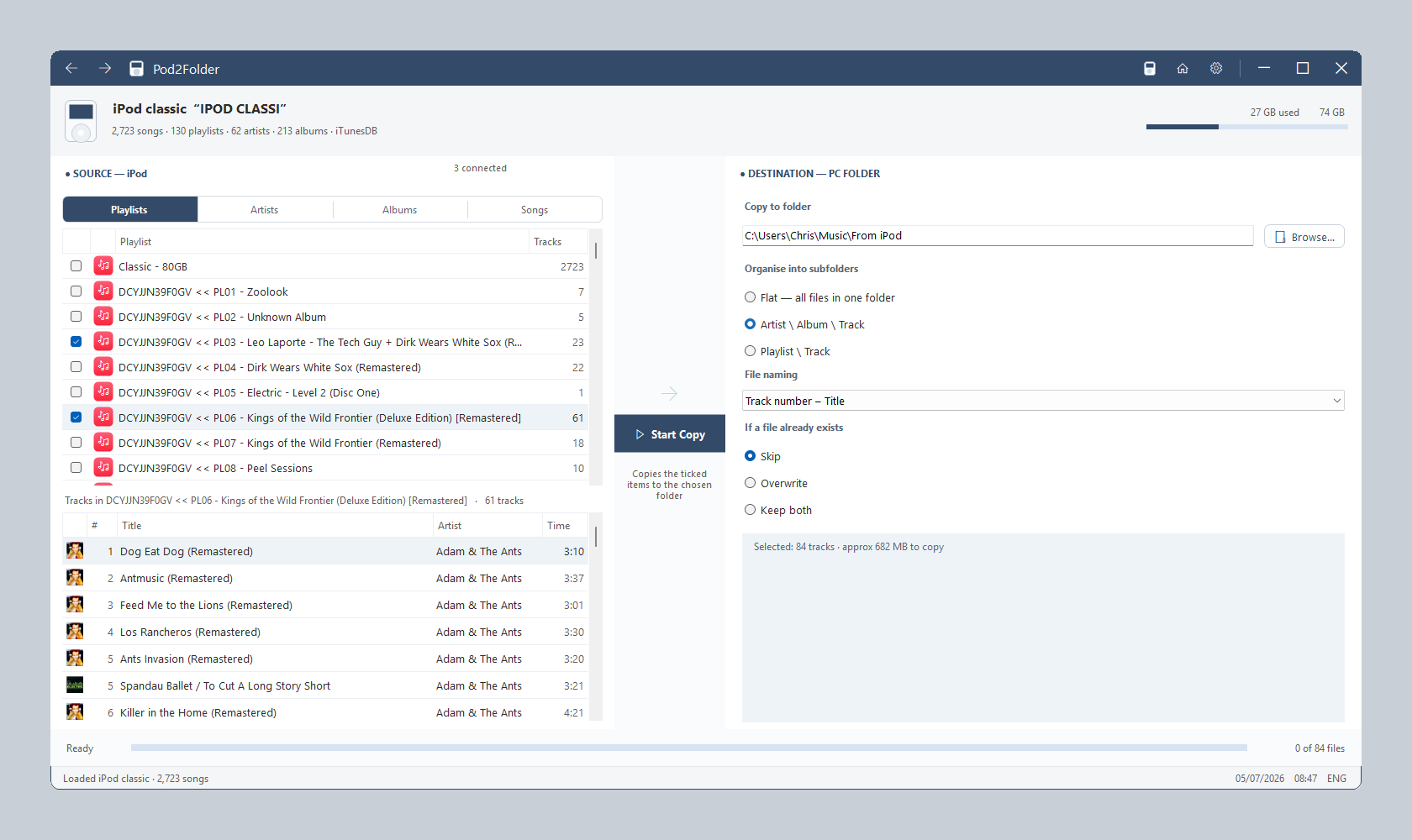
How it works
From drawer-iPod to a tidy folder of music in four steps.
STEP 1
Plug in your iPod
Connect any non-iOS iPod in disk mode — Classic, Nano (1st to 7th generation), Mini or Shuffle. Several at once is fine; you choose which one to read.
STEP 2
Pick your music
Browse the iPod’s own library by Playlist, Artist, Album or Song, with drill-down and tick-boxes at every level — plus Select all and Invert.
STEP 3
Choose the layout
Pick a destination folder and how to organise it — one flat folder, Artist Album Track, or by Playlist — with your preferred file-naming scheme.
STEP 4
Click Start Copy
Pod2Folder copies the music and embeds each track’s album artwork into the file, so your recovered library looks right in any music app.
Why Pod2Folder
Built for the iPods other tools choke on — a clean, modern utility that does one job well.
Every non-iOS iPod
Classic, Nano 1–7, Mini and Shuffle — including the awkward late-model Nanos and Shuffles that other tools choke on, not just the common models.
Artwork intact
The iPod stores album art separately from the music. Pod2Folder reads each track’s cover from the device and embeds it into the copied file, so your library looks right afterwards.
One-way and safe
Pod2Folder copies in one direction only — from the iPod to your PC. It never writes to the device, so your iPod is left exactly as it was.
Features
Everything in the first release (v1.0).
- Works with every non-iOS iPod: Classic, Nano 1–7, Mini and Shuffle — including the late SQLite-library Nanos and iTunesSD Shuffles
- Reads the iPod’s own library — playlists, artists, albums and songs
- Embeds each track’s album artwork into the copied file
- Browse by Playlist, Artist, Album or Song, with drill-down at every level
- Tick-box selection at any level, with Select all and Invert
- Organise the copy into one flat folder, Artist Album Track, or by Playlist
- Choose your own file-naming scheme
- Skip, Overwrite or Keep both for files that already exist in the destination
- Handles multiple connected iPods — pick which one to read
- One-time purchase — no subscription and no account
System requirements
- Operating system: Windows 10 version 1809 (build 17763) or later, or Windows 11 (64-bit)
- Device: a non-iOS iPod (Classic, Nano 1–7, Mini or Shuffle) and a USB cable
- Distribution: Microsoft Store
Frequently asked questions
Which iPods does it support?
Every non-iOS iPod: Classic, Nano (1st to 7th generation), Mini and Shuffle. iPhone, iPad and iPod Touch are iOS devices and are not supported.
Does it change anything on my iPod?
No. Pod2Folder copies music in one direction — from the iPod to your PC. It does not write to the device.
How does the album artwork survive the copy?
The iPod keeps album art in its own separate store rather than inside the music files, which is why files copied off an iPod by hand usually lose their covers. Pod2Folder reads each track’s cover from the device and embeds it into the copied file, so the music looks right in any player afterwards.
How does the free trial work?
The trial has no time limit and every feature works — browsing, artwork embedding, folder layouts, file naming — but only a preview of your selection is copied: the first 10 tracks of each ticked playlist, the first 5 songs of each ticked artist or album, or the first 10 ticked songs, depending on the tab you copy from. The summary tells you how many were held back, and a small free-trial note is written to the destination folder. A one-time purchase removes every limit and copies your whole library.
How much will it cost?
Pod2Folder will be a one-time purchase of £6.99 on the Microsoft Store, with a free trial — no subscription and no account.
Pod2Folder is coming soon to the Microsoft Store
Get notified of updates
Occasional release news by email — we send a confirmation link first, and you can unsubscribe at any time.