
Batch audio conversion for Windows
Audio2Many
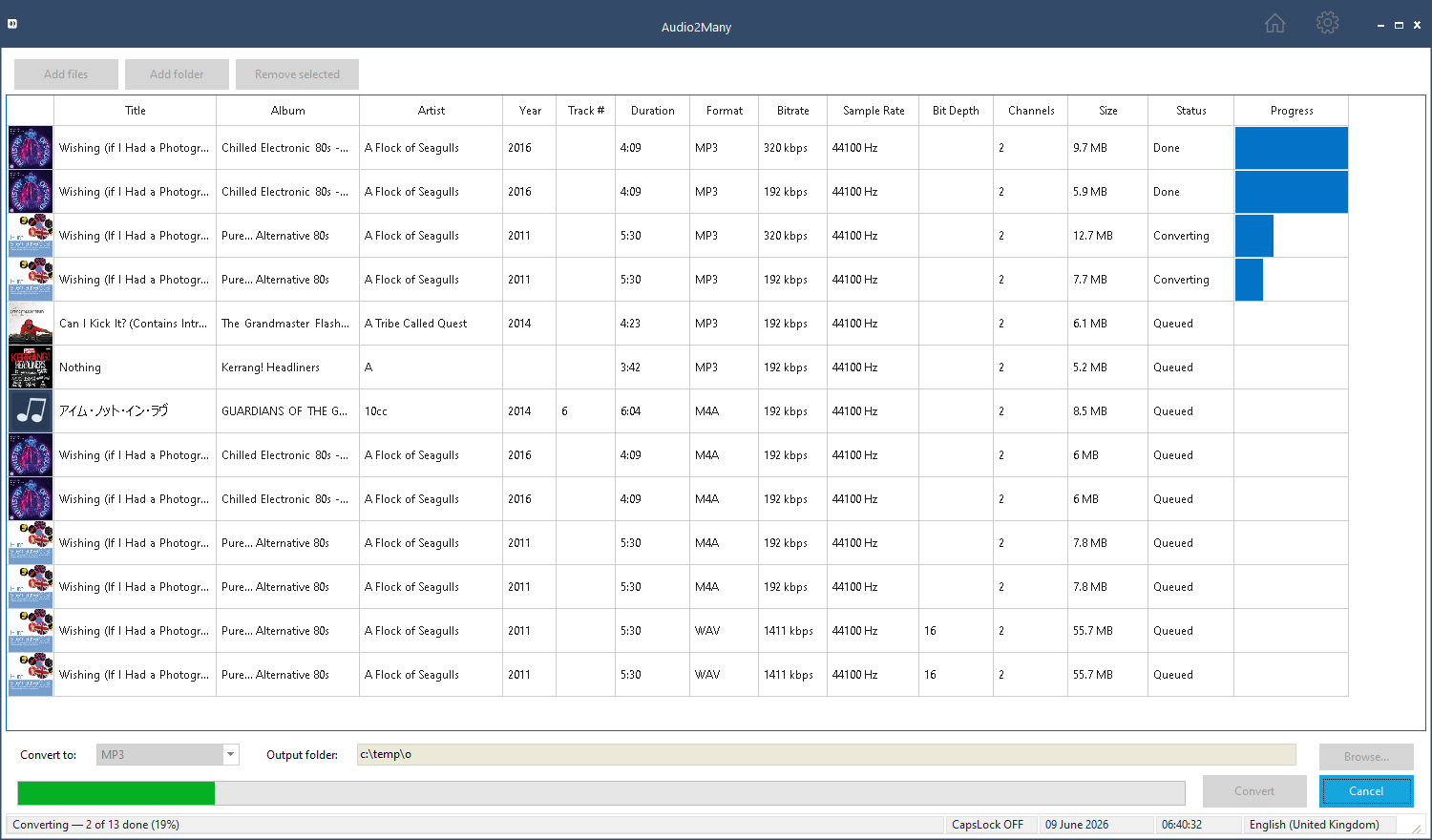
Point Audio2Many at files or whole folders, pick one output format, and convert your library in a single batch — several files at a time, each matched to its source quality, with tags and artwork carried across. Everything runs locally on your PC.
How it works
Four steps from a folder of mixed formats to a tidy set of converted files.
STEP 1
Add files or folders
Drop in individual tracks or point Audio2Many at a folder. Every subfolder is scanned and every audio file it can read is added to the queue.
STEP 2
Choose an output format
Pick one format for the whole batch — MP3, AAC, FLAC, WAV and more. Sample rate, channels and bit depth are matched to the source where the format allows.
STEP 3
Set the output folder
Choose where converted files are written, and what happens if a file of that name already exists: keep both, overwrite, skip, or be asked each time.
STEP 4
Convert and review
Several files convert at once. When the run finishes, an end-of-run report lists the result of every file and flags anything that did not convert.
Why Audio2Many
A clean, focused batch converter — no ads, no accounts, no cloud. Point it at your files and let it run.
Broad format support
Reads 33 audio formats — from MP3, FLAC and AAC to WavPack, Musepack and even Amiga tracker modules — and writes to 18, with control over bitrate, sample rate, channels and bit depth.
Genuine batch workflow
Add individual files or whole folders — every subfolder is scanned and every readable file queued. Convert several at once — up to eight in parallel — to a single output format, with tags and album artwork carried across to each converted file.
Local-first
Everything runs on your PC. No upload limits, no monthly quota, no tracking, no third party seeing your audio library.
Features
Everything in the first release (v1.0).
- Add individual files or whole folders, scanned recursively through every subfolder
- A sortable, multi-select conversion queue showing artwork, metadata and per-file progress
- One output format and one output folder for the whole batch
- Several files converting at once — up to eight in parallel, tuned to your PC
- Source-quality matching — sample rate, channels and bit depth carried through as far as the target format allows
- Tags and embedded album artwork copied from each source file to its converted copy
- Output to common formats including MP3, AAC, OGG Vorbis, WMA, WAV, AIFF and AU
- Customisable output file naming
- An end-of-run report listing every file’s result and flagging anything that failed
Planned for later versions: ripping audio CDs, importing from an iTunes library, and recovering music from older Apple iPods.
Supported formats
Audio2Many reads 33 audio formats and writes to 18. The lists below come straight from the app’s own format tables — the input set is the engine’s reported decode capability, not a wishlist.
Reads (33 file types): MP3, MP2, WAV, Ogg Vorbis, AIFF, WMA, WMV and ASF/ASX audio, M4A, MP4 audio, FLAC, AAC, AC-3 (Dolby Digital), WavPack, AU, Sony Wave64, Creative VOC, IRCAM, Ensoniq PAF, PVF, Apple CAF, Amiga 8SVX, Monkey’s Audio, Musepack, Speex, and the tracker modules IT, XM, S3M, MOD, MTM and MO3.
Writes (18 formats — 6 lossy, 12 lossless/PCM): MP3, MP2, AAC (M4A), Ogg Vorbis, Opus, WMA, FLAC, WAV, AIFF, AU, Apple CAF, Sony Wave64, Creative VOC, Ensoniq PAF, Amiga 8SVX, NIST SPHERE, IRCAM and Portable Voice (PVF). AAC is produced through Windows Media Foundation to stay patent-safe; bit depth, sample rate and channels are matched to the source where the format allows.
New to some of these? See what each format is →
System requirements
- Operating system: Windows 10 version 1809 or later, or Windows 11 (64-bit)
- Processor: dual-core 2.0 GHz minimum; quad-core or better recommended for fast batches
- Memory: 4 GB RAM minimum, 8 GB recommended for large batch jobs
- Disk space: around 500 MB for the application, plus storage for converted files
- Internet: required only for Microsoft Store licence validation — not for conversion
- Distribution: Microsoft Store
Frequently asked questions
Can it convert a whole folder at once?
Yes. Point Audio2Many at a folder and it scans every subfolder, queues every audio file it can read, and converts the lot to one output format — several files at a time.
Does it change my original files?
No. Source material is read-only. Converted files are written to a separate output folder of your choosing.
What about hi-res 24-bit and 32-bit audio?
Where the output format supports it — WAV and AIFF, for example — Audio2Many carries the source’s bit depth through rather than collapsing it. It never upsamples to fake higher quality than the source.
Will converting between lossy formats lose quality?
Converting can never improve quality. Going from one lossy format such as MP3 to another loses a little more — that is unavoidable in any converter — and the end-of-run report flags those files so you are aware. Converting to a lossless format such as FLAC or WAV preserves what is there.
What if a converted file already exists?
You decide, in Settings: add a number to the new file, overwrite the existing one, skip it, or be asked each time.
Can it rip CDs or read my old iPod?
Not in the first release. CD ripping, iTunes library import and recovery from older Apple iPods are planned for a later version.
How much does it cost?
Audio2Many is a one-time purchase of £5.99 on the Microsoft Store, with a free 15-day trial — no subscription and no account. Get it on the Microsoft Store.
Can I save my output to the cloud?
Yes — indirectly. Audio2Many writes converted files to any folder you choose and has no cloud account of its own. If you want a copy in the cloud, set the output folder to one your cloud app already syncs — your OneDrive, Google Drive or Dropbox folder, for example — and it uploads automatically. Nothing is ever sent to us.