
Batch video conversion for Windows
Video2Many
Convert whole folders of video at once, with lossless remux when a file only needs re-packaging into MP4 — no re-encode, no quality loss. Available now on the Microsoft Store for Windows 10 and 11.
How it works
Four steps from a folder of mixed video files to a tidy set of converted files.
STEP 1
Add files or folders
Drop in individual videos or point Video2Many at a folder. Every subfolder is scanned and every video file it can read is added to the queue.
STEP 2
Choose a format
Pick one output format for the whole batch — MP4, WebM, WMV and more. Set resolution, frame rate and bitrate, or leave each matched to the source.
STEP 3
See the plan
Before you start, each file is marked Remux or Re-encode, so you can see which conversions are lossless and instant.
STEP 4
Convert and review
Convert the queue and, when the run finishes, an end-of-run report lists the result of every file and flags anything that did not convert.
Why Video2Many
A clean, focused batch converter — no ads, no accounts, no cloud. Point it at your files and let it run.
Lossless remux when possible
When a file only needs re-packaging — an MKV that already holds the right video, going to MP4 — the streams are copied across in seconds, with no re-encoding and no quality loss. A plan shows which files convert losslessly before you start.
Genuine batch workflow
Add individual files or whole folders — every subfolder is scanned and every readable file queued in a sortable, multi-select list, with tags and cover art carried across to each converted file.
Local-first
Everything runs on your PC. No upload limits, no monthly quota, no tracking, no third party seeing your video files.
Features
Everything in the first release (v1.0).
- Add individual files or whole folders, scanned recursively through every subfolder
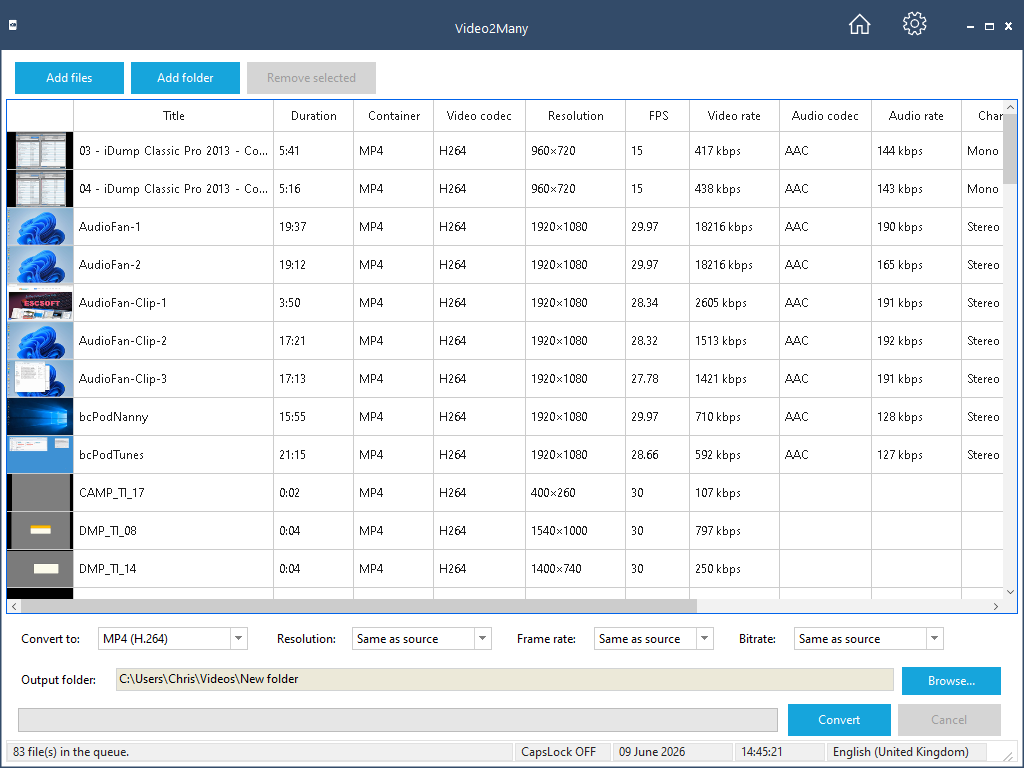
- A sortable, multi-select conversion queue showing a thumbnail, source properties and per-file progress
- One output format and one output folder for the whole batch
- A Plan column that shows which files remux losslessly and which re-encode, before you start
- Lossless remux — a straight stream copy — when the source already matches the target container
- Target resolution, frame rate and bitrate, each defaulting to “same as source”
- Output to MP4 (H.264), MP4 (HEVC), WebM (VP9), WebM (AV1), WMV, AVI and Ogg (Theora)
- Tags and cover art copied from each source file to its converted copy where the container supports it
- Customisable output file naming
- An end-of-run report listing every file’s result, including whether it was remuxed or re-encoded
HEVC (H.265) output uses the Windows HEVC Video Extensions; if they are not installed, Video2Many offers a link to get them. Planned for later versions: hardware-accelerated encoding, basic editing (trim, crop, join) and subtitle handling.
Supported formats
Video2Many reads a wide range of video containers and writes to seven targets. Decoding and demuxing are handled by a bundled FFmpeg (LGPL) build; the final input and output lists are confirmed against that build.
Reads (container families): MP4 / QuickTime / 3GP (mp4, m4v, mov, 3gp, f4v), Matroska and WebM (mkv, webm), AVI, Windows Media (wmv, asf), MPEG program and transport streams (mpg, mpeg, vob, ts, m2ts, mts), Flash (flv), Ogg video (ogv), RealMedia (rm, rmvb), DV, and broadcast containers (mxf, gxf, y4m), plus raw H.264/H.265 elementary streams. Any file without a decodable video stream is skipped automatically.
Writes (7 targets): MP4 (H.264), MP4 (HEVC/H.265)*, WebM (VP9), WebM (AV1), WMV, AVI and Ogg (Theora). H.264, HEVC and WMV are encoded through Windows Media Foundation to stay patent-safe; VP9, AV1 and Theora are royalty-free and encoded by FFmpeg. Each target can also be produced by an instant, lossless remux when the source already holds the right codec.
* HEVC output requires the Windows HEVC Video Extensions to be installed.
System requirements
- Operating system: Windows 10 version 1809 or later, or Windows 11 (64-bit)
- Processor: quad-core 2.0 GHz minimum; six cores or more recommended for faster re-encoding
- Memory: 8 GB RAM minimum, 16 GB recommended for large batch jobs
- Disk space: around 500 MB for the application (including FFmpeg), plus storage for converted files
- Distribution: Microsoft Store
Frequently asked questions
What is the difference between remux and re-encode?
A remux re-packages the existing video and audio into a new container without touching the streams — it is instant and completely lossless. A re-encode rebuilds the video to a new codec or to different settings. Video2Many remuxes whenever it can and only re-encodes when it must, and the Plan column tells you which will happen for each file.
Will converting lose quality?
Remuxed files lose nothing — the original streams are copied across untouched. Re-encoding, like in any converter, can never improve quality and a little is lost; you stay in control by choosing the target bitrate, or leaving it matched to the source.
Can it output HEVC / H.265?
Yes, when the free Windows HEVC Video Extensions are installed. If they are missing, Video2Many points you to them; the other output formats work without any extra components.
Does it change my original files?
No. Source material is read-only. Converted files are written to a separate output folder of your choosing.
How much does it cost?
Video2Many is completely free on the Microsoft Store from version 1.0.1.0 — no purchase, no trial period, no subscription and no account. Get it on the Microsoft Store.
Can I save my output to the cloud?
Yes — indirectly. Video2Many writes converted files to any folder you choose and has no cloud account of its own. Set the output folder to one your cloud app already syncs — your OneDrive, Google Drive or Dropbox folder, for example — and it uploads automatically. Bear in mind that large video exports will use cloud storage and upload bandwidth accordingly. Nothing is ever sent to us.
Get Video2Many on the Microsoft Store
Get notified of updates
Occasional release news by email — we send a confirmation link first, and you can unsubscribe at any time.